July 31, 2026
The online portal is not working:
Please submit paper work orders only until the system is up again.
If you have an outstanding digital Work Orders, please resubmit a paper copy until worthier notice.
Please put Work Orders in the locked box found on the Maintenance Room door in the parking garage.
Use the NewViews Maintenance Tool to submit a request to report maintenance problems and request repairs.
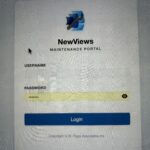
You can bookmark the maintenance portal on your device to access it faster next time. https://wo.newviews.com/woodsworth
The link should already include our name Woodsworth. If not, you’ll see a prompt—just type woodsworth and continue to log in.
1. Username and password
First time users – your username and password are identical.
Your surname should be in lower case, not capitalized.
This is the default for both username and password.
Here are examples of how members on different floors or streets should log in:
Mid-rise units – units in 133 Wilton Street
Barbara Lee in unit #102 would enter 102w-lee
Members in street access units (townhouses and Wilton Street
So if Barbara Lee lived in a street-access unit or Wilton Street, she would write it like this:
- Albert Franck units: 48af-lee
- Frederick Street: 96f-lee
- George Street: 12g-lee
- Wilton Street: 234w-lee
(Note: mid-rise and Wilton Street have the same format.)
Reminder: The default password is the same as your username.
Your username does not change after changing your password. (See #4).
Username: Any problems with your username, contact the Management Team at Woodsworth.
Password: If you are prompted to change your password, you can do it now or do it later. More information below.
2. Creating Work Orders
After logging in with your username and password, you can create a work order by completing the form in the Create Work Order tab:
– Enter your phone number
– Select a Work Order Type that best describes your problem.
– Provide details of work to be done.
– Give permission to enter your unit
– Attach any photos (optional)
– Click on the blue Submit button when you are finished filling in the form.
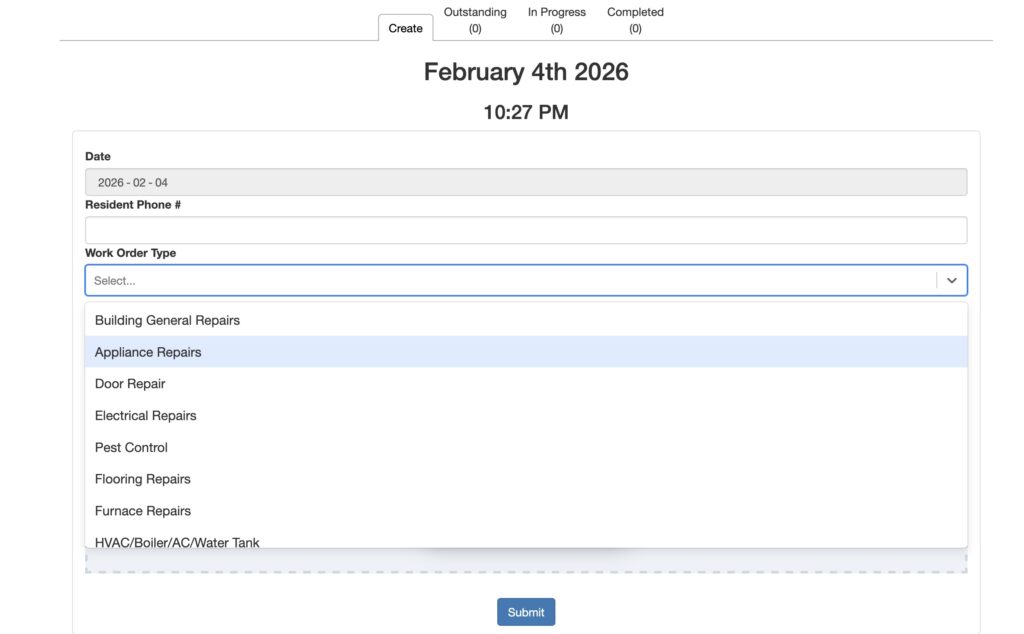
Click on the blue Submit button when you are finished filling in the form.
3. Tracking work orders for your unit
You can view all your unit outstanding work orders on the other tabs -Outstanding, In Progress and Completed.
And see the attached instructions sheet.
The web link to the Maintenance Module can also be found at the bottom of emails sent by the office.
4. Updating your password
Initially, your Username and Password are the same and both should be lowercase.
Click on the orange padlock icon beside your Username. (As usual, save your new password!)
You cannot change your username. If there is a problem with it, contact Management.
5. Emergencies
On-Call – weekends and evenings/overnights only
📞 437-766-3145
NEW! On-Call phone number – from Friday July 31, 2026
(temporarily, the message will still say HomeStarts.)
OLD phone number: +1 (877) 858-1110,4
(877-858-1110 extension 4)
Maintenance Team – weekdays only, normal business hours
If you want to reach the maintenance team please contact them at 416-363-7542.
A Work Order must be submitted to have repairs done.
It isn’t sufficient to call the office or to ask maintenance staff to report it.
Submitting a work order allows maintenance to prioritize work orders and allows us to track them to ensure completion. As well the board can use the work order data to gain insight into common challenges we face in the co-op (e.g. clogged drains), associated costs and allows to understand in a concrete way what the maintenance team is accomplishing.
6. Prefer paper forms?
Paper forms are available in the Photocopy Room. To track your requested repairs, you will need to check with staff.
If you use the paper form, you must get it to management – through the lobby mail slot or the locked box in the garage on the maintenance room door or by email.
7. The NewViews link to report repairs online is – bookmark it for future reference!
https://wo.newviews.com/woodsworth
8. Instructions
Updated February 26, 2026